



My client is a small business owner based in the Atlanta area who has had a website for several years. The site was originally built by another company, and since then, she’s been managing it herself. She wanted a trusted partner who could not only help clean up and speed up her site but also guide her along the way so she can confidently manage and update her content on her own — with someone to fall back on when needed.
Why Website Cleanup and Optimization Are Important for User Experience, Security, and Performance
A well-maintained website will result in a more enjoyable experience to visitors. Cleaning up outdated plugins, fixing broken links, and organizing content helps users browse through your site easily, which keeps them engaged and encourages them to return.
Optimization also plays an important role in site security — updating plugins and tightening settings protects your site from hacks and vulnerabilities that could compromise your business. Lastly, performance improvements like faster load times directly impact both user satisfaction and search engine rankings, helping your site attract more traffic and convert visitors into customers.
While improving site speed wasn’t the main goal, performance scores naturally improved as a result of the overall site cleanup. Here’s how it went…
Setting Up Reliable Backups
Since the site was originally hosted with Bluehost, I first logged in and located the available backups there. While that was a good starting point, I also set up a more reliable and accessible solution by installing a backup and restore plugin. Lately, I’ve been using ManageWP for this—it’s a solid tool that allows me to schedule regular backups and restore the site quickly if anything goes wrong.
Having backups in place is one of the most important parts of managing a website. Whether it’s a plugin conflict, a hack, or just a mistake during an update, being able to restore the site quickly means less stress and no loss of important content or functionality.
Cleaning Up Unused and Redundant Plugins
One of the first things I tackled was the plugin list. Over time, it’s easy for WordPress sites to accumulate extra plugins—some inactive, some outdated, and some doing the same job as others. In this case, there were two backup plugins installed (but not in use), an inactive SEO plugin (Yoast was already active), and a social sharing plugin that had been deactivated. I also removed the default “Hello Dolly” plugin, which was still active but doesn’t serve any real purpose.
Too many plugins—especially ones that aren’t being used—can slow down your site, introduce security vulnerabilities, and create unnecessary clutter in the dashboard. Cleaning things up not only helps improve performance but also makes the site easier to manage going forward. Less really is more when it comes to WordPress plugins.
Beyond slowing down your site, unnecessary plugins can also bloat your WordPress database. Even when a plugin is deactivated, it may still leave behind data—like settings, logs, or entries—that continue to take up space. Over time, this clutter adds up and can affect performance, especially during backups or when loading the admin area. Keeping your plugin list lean helps keep the database cleaner and the site running more efficiently.
Fixing Jetpack User Access
While Jetpack isn’t one of my go-to plugins, there are situations where it makes sense to keep it—especially when a client is already using its features and finds them helpful. In this case, Jetpack was handling several key functions on the site: related posts, traffic stats, social sharing buttons, the activity log, and user management.
Since the client was familiar with these features and they were actively being used, it made more sense to clean up the connection (by switching the WordPress.com account) rather than removing Jetpack altogether. For some sites, especially small business websites that benefit from having a handful of tools under one roof, Jetpack can still be a practical option. It’s all about choosing the right tools for the specific needs of the client.
Miscellaneous Plugin Cleanup for Security and Performance
To tighten up the site’s security and make things run a little smoother, I made a few adjustments to existing plugins:
Akismet, a spam-filtering plugin developed by the team behind WordPress, was already installed but not fully set up. I kept the plugin and added a free API key to activate it. This helps filter out spam comments automatically, which is important for keeping the site clean and professional.
Wordfence, a popular security plugin, was also in place, but I went through the settings and optimized them for stronger protection. This included enabling key features like login security, scan schedules, and real-time threat defense, all while making sure it doesn’t slow down the site.
A Redirection Plugin was kept to manage URL redirects, which is great for SEO and fixing broken links. I did turn off the logging feature, though—while it can be useful during development or troubleshooting, it can also bloat the database over time if left running constantly. Many of the popular SEO plugins include the redirections of URL’s, but in this case, the client was using the free Yoast plugin.
Cleaning Up the Database with WP-Optimize
Over time, your WordPress database can get cluttered with leftover data like post revisions, spam comments, and orphaned plugin tables. This buildup can slow down your site and make backups take longer.
To keep the database lean and efficient, I used the WP-Optimize plugin. It safely cleans out unnecessary data and optimizes database tables without affecting your content. Running regular database cleanups with WP-Optimize helps improve site performance and keeps everything running smoothly behind the scenes.
Use this plugin with caution – make sure you have backups handy in case it all goes to s#!t!

Migrating and Managing Hosting & DNS
As part of the cleanup, I moved the domain’s name server to Cloudflare. This change gives the site better control over DNS management, adds an extra layer of security, and helps protect against attacks like DDoS. Cloudflare’s global network also helps speed up how quickly visitors connect to the site, no matter where they are.
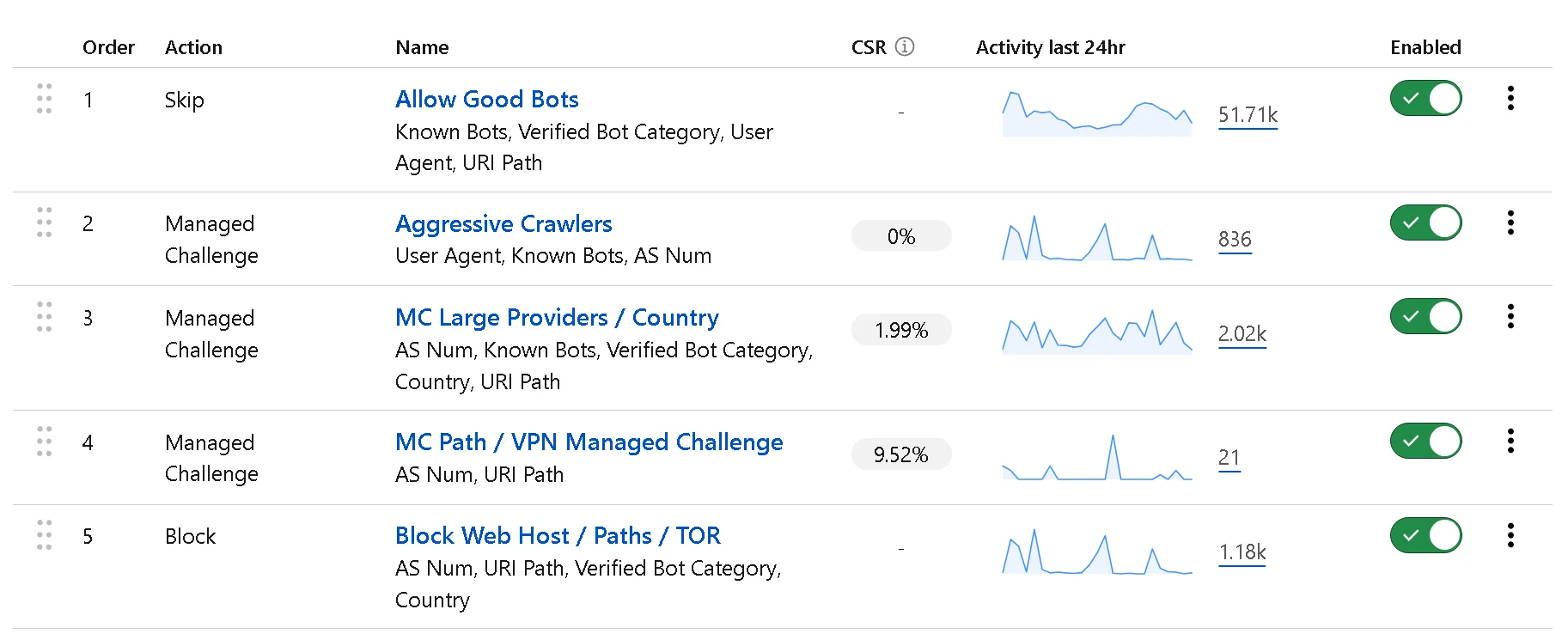
One of the powerful features of a free Cloudflare plan is the ability to create custom firewall rules that block unwanted traffic before it even reaches your server. This means you can block entire countries, specific IP addresses, or suspicious bots right at the edge of your network. By filtering out bad traffic early, you reduce server load, improve performance, and protect your site from potential attacks like hacking attempts.
For this client, I implemented a set of custom Cloudflare Web Application Firewall (WAF) rules created by Troy Glancy from Web Agency Hero. Troy’s rules are designed to target common attack patterns and block malicious traffic without affecting legitimate visitors.
Contact Form Revamp
Boosting Performance with Perfmatters
To further improve the site’s speed and overall performance, I added the Perfmatters plugin. Perfmatters is one of my favorite plugins—not only because it works really well to speed up websites by disabling unnecessary scripts and features, but also because the team behind it offers fantastic support and a wealth of educational content online. They make it easy to understand how to optimize your site without getting overwhelmed by technical details.
Adding Perfmatters to this site allowed me to fine-tune performance in a way that’s both effective and user-friendly, helping the site load faster and deliver a smoother experience for visitors.
Helpful tip – if you’re using Cloudflare + Perfmatters, check out Perfmatter’s recommended Cloudflare settings.
Site Speed Improvements: Before and After
One of the most exciting parts of this project was seeing the real impact of the cleanup on site performance. Before I started, the Google PageSpeed Insights scores were 54 on mobile and 70 on desktop—pretty average and leaving plenty of room for improvement.
After completing the updates and optimizations, the scores jumped to 88 on mobile and 94 on desktop. These noticeable gains mean the site now loads faster and provides a much smoother experience for visitors, especially on mobile devices where speed is critical.
While these improvements have made a significant difference, there’s still more work to be done to take the site to the next level. Website optimization is an ongoing process, and new opportunities for enhancements will arise as the site grows and evolves.
I’m proud of how far we got within the client’s budget—prioritizing the most impactful updates to deliver clear results without overextending resources. Moving forward, we can continue building on this strong foundation with additional optimizations as needed.

